



Location sharing has become a natural part of staying connected in today’s mobile world. Whether you’re trying to meet up with friends, check in on a family member, or ensure someone gets home safely, knowing how to request another person’s location can save time and provide peace of mind. Apple has built several convenient tools into the iPhone that make this process simple, transparent, and secure. Each method is designed to protect user privacy while still offering the flexibility to share real-time location information when needed. This guide walks you through the different ways to request someone’s location on an iPhone and explains how these features help keep communication safe and effortless.
1. How to Request Someone’s Location on iPhone?
Apple’s ecosystem is known for prioritizing user privacy. Because of this, every method of requesting someone’s location on an iPhone requires their explicit consent, and they are always notified. Below are the main ways to request someone’s location on iPhone.
1.1 Request Location Using the Messages App
This is the simplest and fastest method, especially if you already text the person regularly.
Langkah-langkah:
Bukak ing
Pesen
app > Open the conversation with the person whose location you want to request > Tap their
name or profile picture
at the top of the screen > Tap
“Request Location”
.
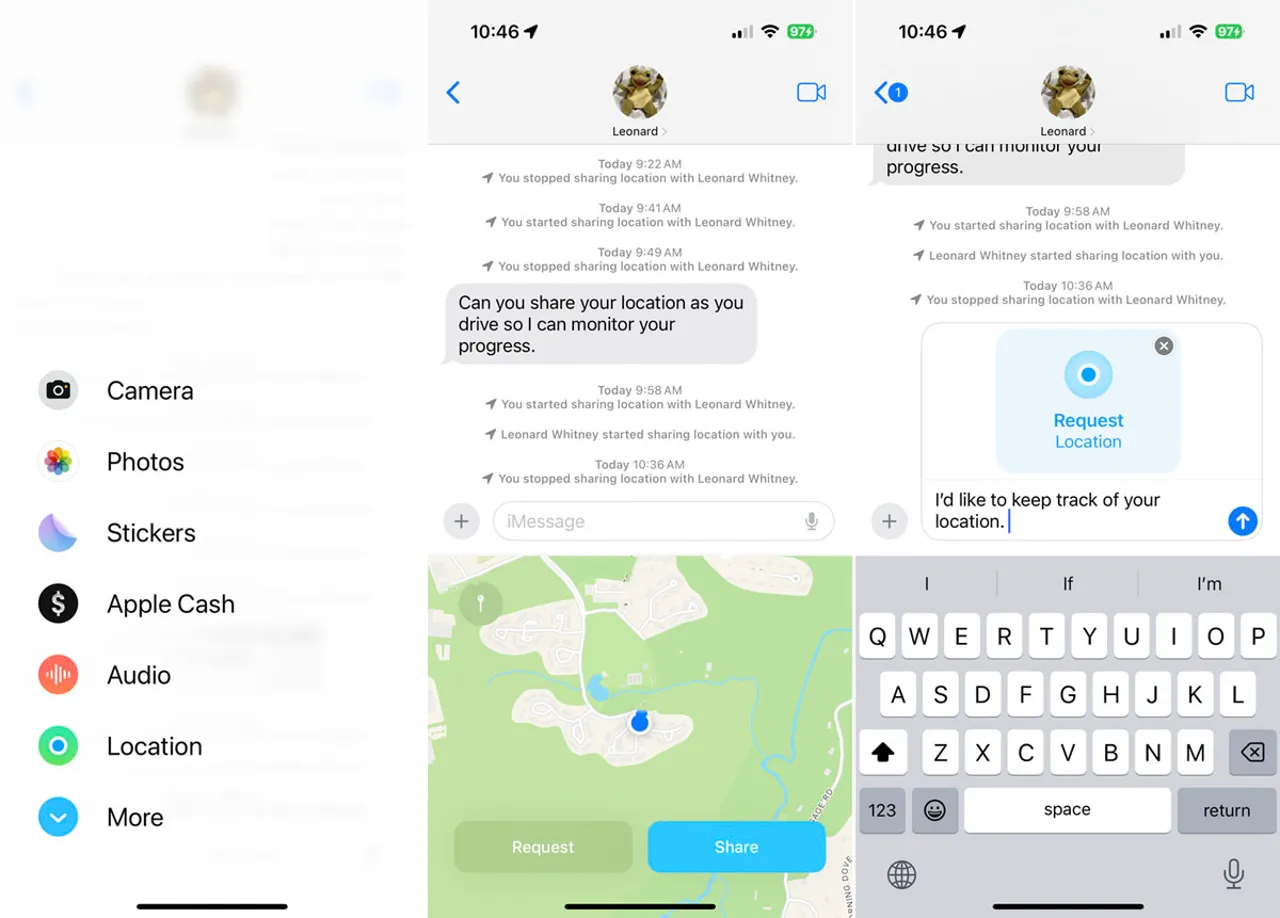
The other person will receive a prompt asking them to share their location with you temporarily or indefinitely. If they approve, you’ll be able to see their real-time location in the Messages info panel and in the Find My app.
This method is popular because it is quick and doesn’t require any additional setup. As long as both parties use iMessage, location requests are straightforward and secure.
1.2 Request Location Through the Find My App
The Find My app offers more advanced location-sharing controls. Many users prefer this method because it allows for continuous location tracking, helpful for family members and close friends.
Langkah-langkah:
Bukak ing
Golek Kula
app on your iPhone > Go to the
wong
tab > Tap the
+
button and choose
Share My Location >
Select the contact with whom you want to share your own location > After you share yours, tap their name and choose
“Ask to Follow Location”
.
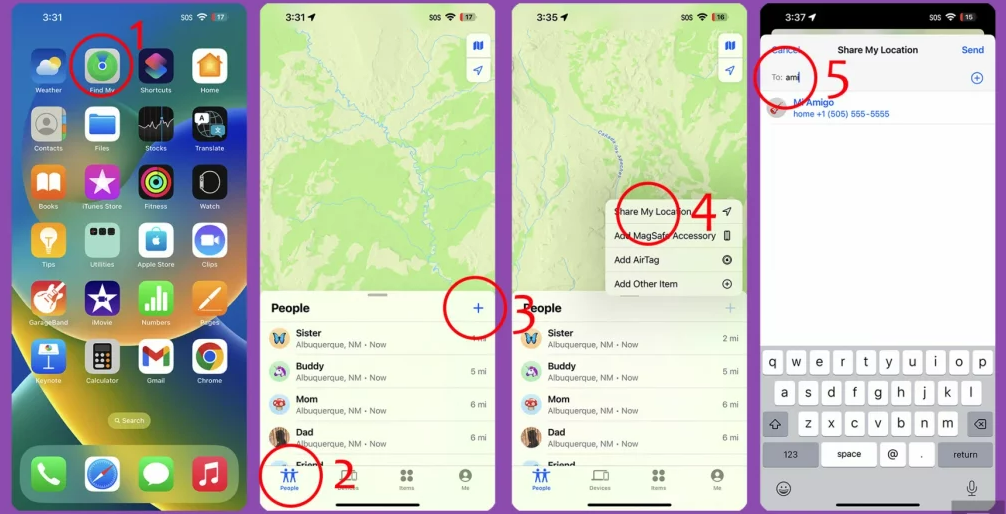
For privacy, you cannot request someone’s location until you’ve shared yours first. Once you send the request, the other person must approve it. If they accept, their real-time location will appear in your Find My People list.
This method is ideal for long-term sharing—for example, between partners, roommates, or relatives—because it provides real-time updates and integrates with alerts like “Notify When Arrived” or “Notify When Left.”
1.3 Request Location via Family Sharing
For family safety, parents or guardians often rely on Apple Family Sharing , which includes integrated location-sharing controls.
How it works:
When a family group is set up, members can easily choose to share their location with each other. For minors with an Apple ID managed under Family Sharing, location sharing is typically enabled by default, helping parents keep track of their children’s whereabouts.
Steps to Check Location Settings:
Mbukak
Settings >
Tap your
ID Apple
(your name) > Tap
Family Sharing >
Pilih
Nuduhake Lokasi
.
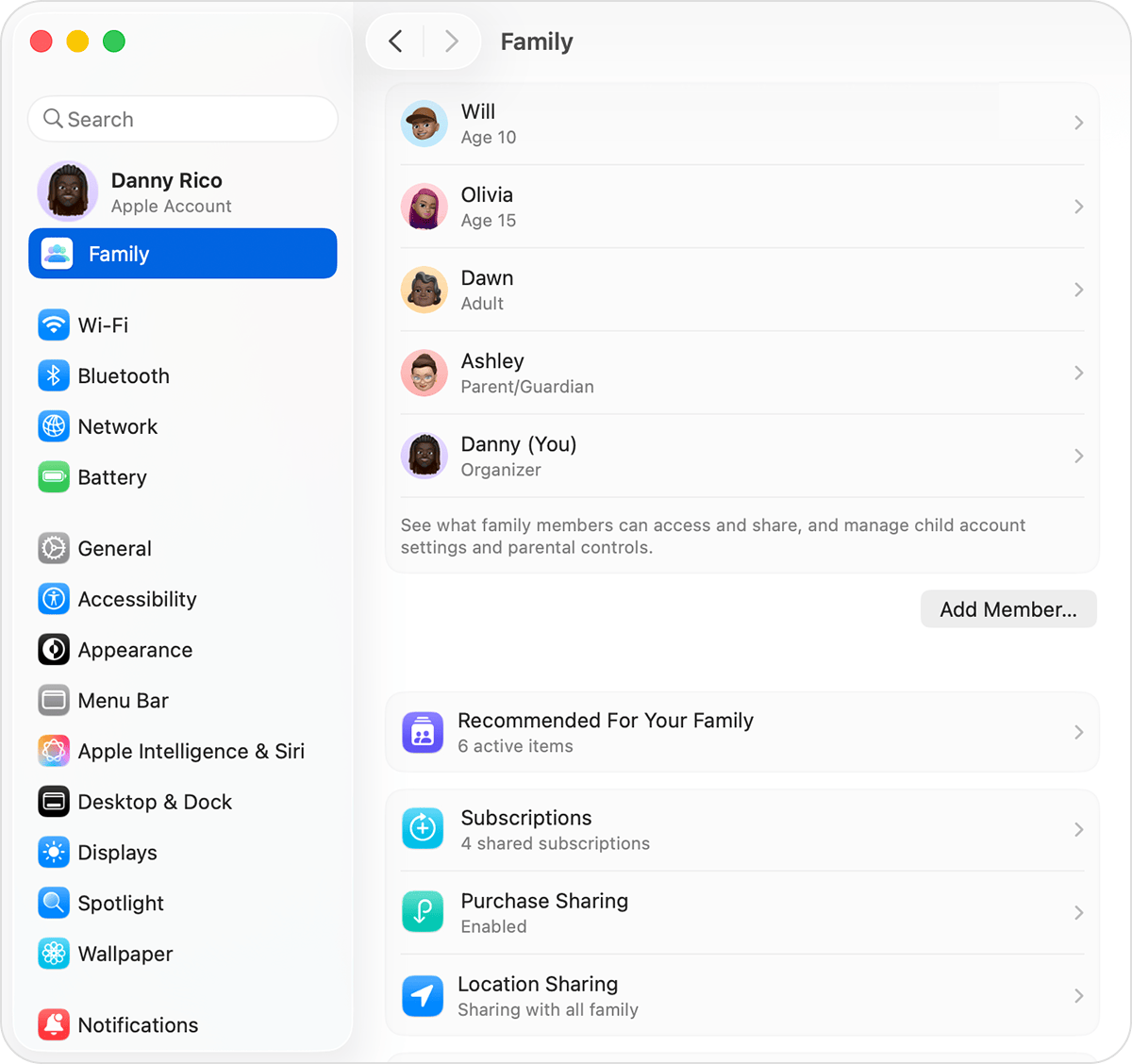
From there, you can make sure location sharing is active. Family members can choose whether to share their own location with the group.
1.4 Share Your Location to Prompt a Request Back
If you want someone to share their location with you but prefer a more subtle or polite approach, share your own location first.
Langkah-langkah:
Mbukak
Pesen
→ the conversation > Tap the person’s name > Select
Nuduhake Lokasiku
→ choose time duration.
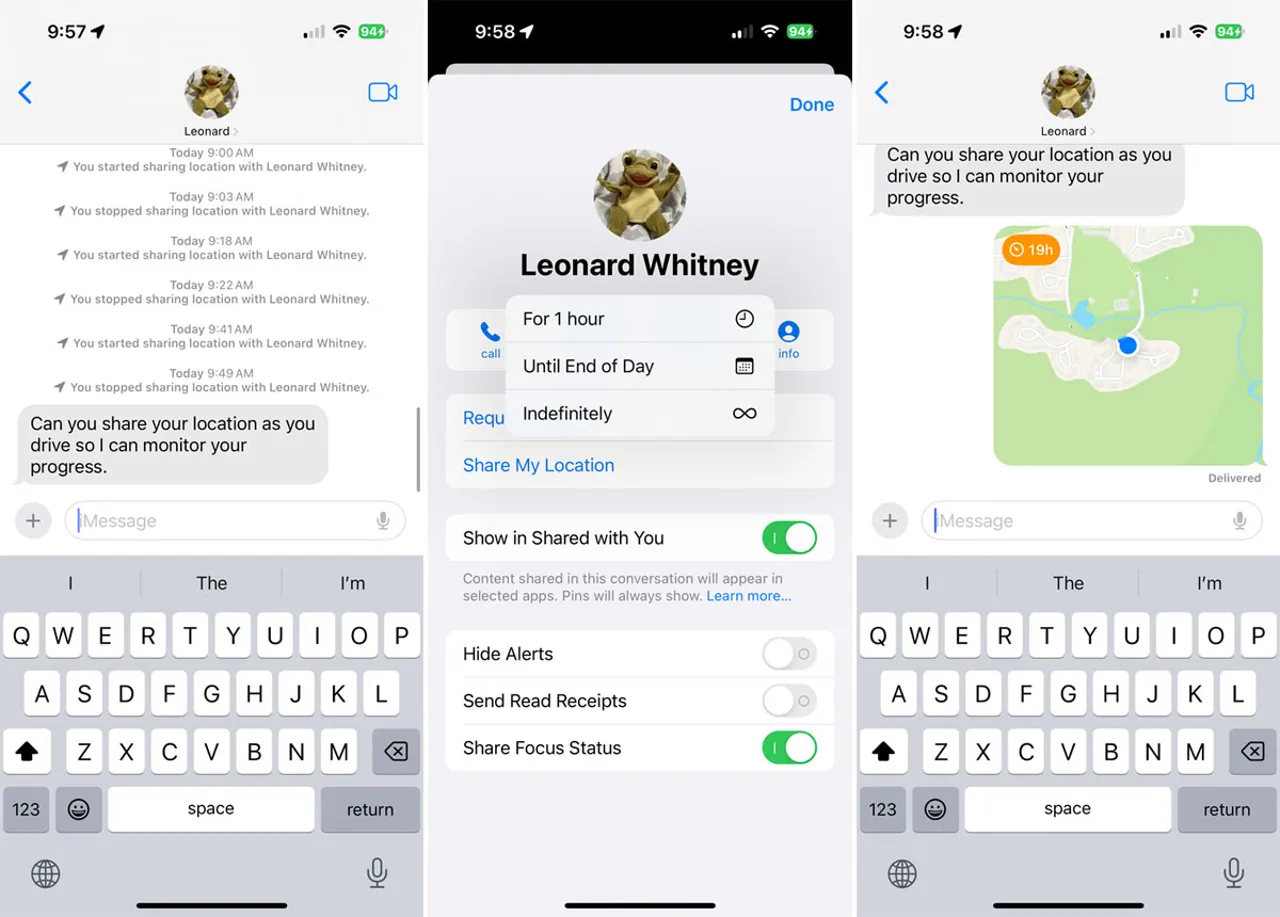
After you share your location, most people can conveniently tap to share theirs back. This encourages voluntary sharing without directly requesting it.
2. Bonus: Manage Your iPhone Location with AimerLab MobiGo
While iOS makes requesting someone else’s location easy and secure, there are many situations where users may want to manage their own location differently. For example:
- Testing location-based apps or games
- Preserving privacy when using certain services
- Simulating travel for social apps
- Accessing geo-restricted in-app features
- Avoiding sharing your precise location while still appearing “online” in certain apps
This is where AimerLab MobiGo, a professional iOS & Android location changer, becomes extremely useful.
AimerLab MobiGo allows iPhone users to change, simulate, or freeze their GPS location without jailbreaking their device. This means you can appear in any location worldwide instantly.
Key features of MobiGo:
- Change GPS location instantly to anywhere in the world
- Simulate GPS movement along custom routes
- Two-spot or multi-spot route simulation with adjustable speeds
- Pause, resume, or lock GPS movement for precise control
- Works with most location-based apps (games, social media, navigation)
- No jailbreak required
- User-friendly interface for easy location management
Because MobiGo changes your device location, it never interferes with another person’s privacy or attempts to track someone without consent. Instead, it gives you control over how your own location appears to apps and services.
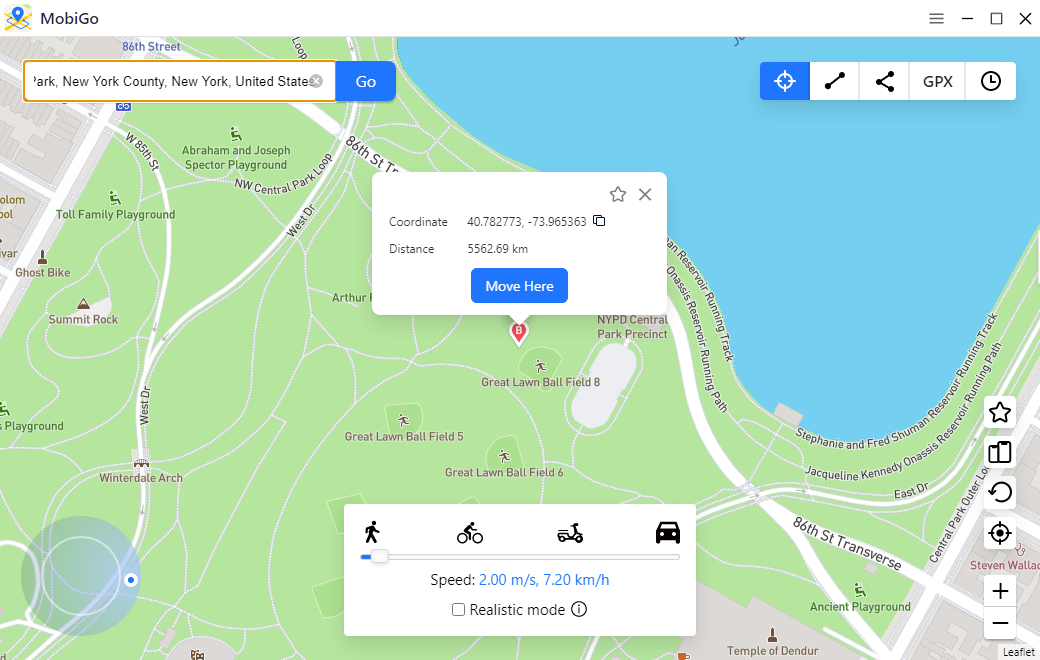
How to manage your iPhone location using MobiGo:
- Download and install AimerLab MobiGo on your Windows or Mac.
- Connect your iPhone to the computer using a USB cable, then launch MobiGo and let it detect your device.
- Select the Teleport Mode, then choose a location on the map or enter coordinates.
- Click “Move” to change iPhone’s GPS location, then verify the new location on your iPhone or in location-based apps.
3. Kesimpulan
Requesting someone’s location on an iPhone is easy thanks to the Apple built-in tools (Messages, Find My, or Family Sharing).
However, just as important as knowing how to request someone else’s location is having control over your own. That’s where AimerLab MobiGo stands out. It helps users protect their privacy, test location-based apps, simulate GPS movement, and enjoy greater flexibility with how their device location is used. With its intuitive interface and robust feature set, MobiGo is a powerful companion for anyone who wants advanced control over their iPhone’s GPS behavior.